Wind-up knight,

Wind-up knight,sebuah game 3D petualangan dengan side scrolling yang akan membuat anda betah untuk memainkannya.Dirilis oleh robot invader game ini gratis dan dapat di unduh dimarket.
Wind-up mengusung kualitas graphic yang cukup tinggi sehingga diperlukan perangkat dengan graphic card yang mendukung,lebih lengkapnya berikut deskripsi game dari android market.
Wind-up Knight is a high-end game, with the best-looking graphics and the tightest game play you’ve seen on a phone. It requires a HIGH-END device–a Nexus One or better. It’s pretty awesome on tablets, too.
Here’s some bullet points all up in your grill:
- Over 50 soul-crushing levels.
- Pick-up-and-play game play.
- Super high-end 3D graphics technology. A showcase for your phone.
- Crazy platforming action: double jumping, wall sliding, dive and roll, just to name a few cool moves.
- A secret card is hidden in EVERY level.
- Four unique worlds.
- Deviously cute art style.
- Power up with game-changing equipment and weapons.
- Original soundtrack by Josh Whelchel.
Wind-up Knight has been designed from the ground up to provide a console-level experience for your handheld device. It doesn’t get any better than this.
Note: if you are mega hardcore it is possible to unlock all the levels in this game for free. If you prefer to pay a few bucks to unlock levels, that’s cool too. However, purchases are not transferrable across devices.
Video Wind-up:

Download Wind-up [market ]

Download Windows 7 PC Style File Manager For Android

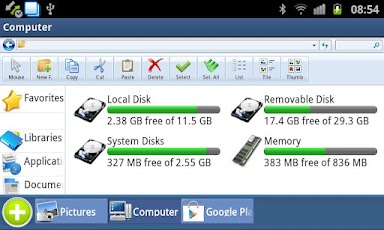
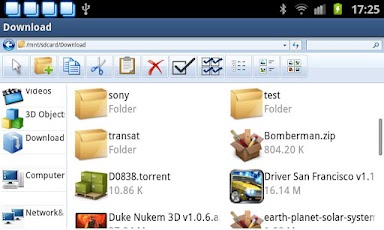
Pada kesempatan ini saya akan membagikan sebuah aplikasi yang memungkinkan anda menghubungkan android anda dengan komputer anda, Computer aplikasi, aplikasi Ini adalah file explorer atau file manager, yang dirancang mirip dengan Komputer dari Windows 7 dan My Computer dari Windows XP. Terbuka Dengan pilihan untuk semua file, yang bekerja sama dengan opsi OpenWith dari Windows. Jaringan file sharing mencakup klien SMB (Samba) untuk saham file Windows di LAN, sebuah klien FTP untuk koneksi internet, dan klien SSH (SFTP). Zip arsip ekstraksi disertakan juga.


Mendukung tab, sehingga Anda dapat membuka beberapa folder pada saat yang sama. Ini juga merupakan tugas manajer memungkinkan beralih ke programms lain yang telah dibuka, atau menutup atau menghapus mereka. Aplikasi diluncurkan juga di taskbar. Ada juga alternatif untuk tombol Start Menu: link Aplikasi di menu samping akan menampilkan semua aplikasi yang terinstal.

Fitur:
  •  3dviewer adalah penampil 3ds dan penampil obj, untuk membuka file 3D objek. 
  • ImageViewer adalah penampil PNG, JPG penampil, GIF penampil, BMP viewer, TGA penampil (TARGA), TIF penampil (TIFF), DDS penampil (DXT), untuk membuka file gambar.
  •  MediaPlayer adalah video dan audio player untuk banyak jenis file, seperti mkv, wmv, mp4, avi dan banyak lagi.Urungkan pengeditan
Download Computer From: Google Plays

Real Steel HD WVGA


Champions aren't born. They're made. The ONLY official game "Real Steel" on Android Market. Gizmodo says, "game looks fun as hell." iPhoneappreview says, "Real Steel is a solid winner." Real Steel is an underworld fighting game set in the near-future, where 2,000 pound robots fight in a no-holds barred battle to the death. Featuring two play modes, you can either fight a roster of Robots (Tournament. Real Steel HD Wvga apk & Sd Data: Android hd games apk & sd files free downloads!


Mode), each more challenging than the last, or fight in a quick sparring match against your favorite opponents (Free Sparring Mode). Your primary objective: defeat Midas and unlock all 8 unique Robots. Real Steel HD Wvga apk & Sd Data: Android hd games apk & sd files free downloads!

Download Now Real Steel HD Wvga apk
                           Real Steel HD Wvga apk


Download Now Real Steel HD SD Data (HTC)
                          Real Steel HD SD Data (LG)
                          Real Steel HD SD Data (Samsung/Motorola)

How to install: Install apk and Put the data to SDcard/Android/data/..here

Dungeon Hunter


Hero, you are needed in battle! This is your time to conquer! Evil has once again flooded over the sacred land of Gothicus. Face your destiny and enter the endless waltz of battle, victory and glory. 16 massive arenas are waiting for you now. Hero, this is your time to conquer! The benchmark for action RPG games is back in a third free to play installment, and it’s even more legendary than ever!


EXPERIENCE THE DUNGEON HUNTER 3 LEGEND FOR FREE
- Rediscover the thrilling hack 'n' slash action gameplay that made the franchise so popular. Epic real-time fighting will provide your daily dose of fun!
- Hack your way through 16 different arenas, each of which can be challenged at 5 different levels of difficulty to provide optimal replay value.
- Choose any arena you’d like to revisit at any time and improve your best score! Or enter our daily challenge to see if you can beat the best score and earn great rewards for your achievements.
TONS OF OPTIONS FOR YOUR PROGRESS AND EVOLUTION
- Deep character customization: Choose from 4 new classes – Warlord, Astromancer, Trickster or Shaman – and for the first time in Dungeon Hunter you can even choose the gender of your hero.
- Over 1,000 items to unlock throughout the adventure or buy them right from the start if you can’t wait. Will you become the most powerful hero?
- Gain experience points with each completed arena and unlock new skills and new fairy attacks as you level up.
UNPRECEDENTED HD GAME VISUALS
- Visit 4 fantastic worlds set within a dark fantasy universe. Gothicus will never cease to amaze you!
- The graphics take full advantage of your device with refined textures, advanced shaders, beautiful lighting effects and super-fluid animations to make a stunning 3D game experience.
- Astounding visual effects like motion blur, real-time distortion, dynamic particles and more make your special attacks stunning to see in the heat of battle.

 Download Now
SD data Downloads:
How to Install: 
  1. Install the apk
  2. Put the data to sdcard/gameloft/games/...here
  3. Launch & Play the game!

Aplikasi Paranormal Android Bikin Foto Jadi Serem

Bagi anda yang punya gadget atau ponsel Android, bersiaplan untuk unyuk menghebohkan lokasi atau tempat keramain atau lokasi lain dimanapun anda berada. Lalu, apa yang bisa dilakukan agar ponsel Android bisa menghebohkan semua orang? Paranormal Photos adalah namanya.
Aplikasi Paranormal Android Bikin Foto Jadi Serem Image
Paranormal Photos sendiri adalah aplikasi buatan pihak ketiga yang digunakan untuk memodofikasi foto agar terlihat serem. Bagi yang merasa paranoid, jangan pernah menggunakan aplikasi ini karena hampir bisa dipastikan anda sendiri akan menjerit melihat hasil foto dari Paranormal Photos.
Cara kerja aplikasi ini, setiap foto yang ada pada Gadget Android, baik itu foto lama atau foto bisa diedit serasa “penampakan tamu tak diundang” yang akan muncul di foto. Nantinya, “tamu tak diundang” tersebut kan terlihat/terkesan nyata dan menyatu dengan foto asli. Jika tertarik dengan aplikasi ini, silahkan kunjungi http://www.appbrain.com/app/paranormalphotos/in.somnia.android.camera.horrorjp1 dan install aplikasinya di Android kesanyangan anda.
Aplikasi Paranormal Android Bikin Foto Jadi Serem Image
Jika belum tahu cara penggunaan aplikasi ini, berikut sedikit kami jelaskan bagaimana cara menggunakan Paranormal Photo:
  • Siapkan obyek/tempat dan suasana yang anda inginkan.
  • Kemudian, setelah obyek sudah fokus, pilih gambar hantu mana yang ingin anda tambahkan di dalam foto.
  • Setelah itu, ambil gambar dan lihat hasilnya.
Aplikasi Paranormal Android Bikin Foto Jadi Serem Image
Sekarang coba lihat hasilnya, di situ akan ada “hantu gentayangan” yang akan membuat teman, saudara dan semua orang yang melihat gambar itu menjadi paranoid.

Top 10 things you can do on your Android 4.0 Ice Cream Sandwich Device

Everyone is going ga-ga over Ice Cream Sandwich. Ever since it was released, third-party Android developers have been hard at work porting leaks into every possible phone and improving the stock firmware with additions of their own. We’ve seen Ice Cream Sandwich in stock form, in it’s purest form without HTC’s Sense UI on top, various aesthetically modified versions, as well as those that have been given performance boosts.
It makes sense that because Ice Cream Sandwich is the hottest thing making rounds in the Android development community that everyone would want a piece of it, but what makes Ice Cream Sandwich so great? To answer your question, we’ve put together a list of the top 10 things you can do on your Ice Cream Sandwich phone. Keep in mind, this is in no particular order.

Face Unlock

The first thing you notice with Ice Cream Sandwich is that it looks different from Gingerbread but you’re probably being too busy checking out the new wallpaper on your lock screen to realize that you can unlock your phone without entering a password.
Thanks to Face Unlock, your phone uses its front-facing camera to recognize you. This means that it unlocks only when you pick it up, effectively preventing nosy friends, family and strangers from perusing your phone’s content when you aren’t looking. Simply hold up your phone at eye level and your phone should detect your face.
Face Unlock isn’t perfect, though, and a number of factors may prevent your phone’s front-facing camera to see your face properly. While setting up Face Unlock, you can choose between Pattern unlock and PIN unlock as a backup plan if ever Face Unlock fails to identify your face.
Another possible problem is if someone who looks like you, like a family member with the same set of features, or an evil twin, may actually be able to effectively unlock your phone with his/her face. But, what are the chances of that happening?

Multitasking

Since phones have become more powerful, packing specs that the phones of yesteryears could only dream of, the temptation to do too many things at once on your Android device has been calling to users. The number of things we could do with apps certainly isn’t helping us keep away from temptation.
In older versions of Android software, users had to download a task switcher application for their phones, but with Ice Cream Sandwich, that is no longer necessary. Just long-press on the Home button to see which applications are open.  Scroll through little screenshots and tap the one that you want to jump into. You can jump back out by tapping the same button.
Click this bar to view the full image.
If that isn’t cool enough, multitasking also means lightening the load on your phone. When you’re looking at the list of open applications, you won’t need to individually jump into an application to close it. Simply swipe the application’s little screenshot off your screen to the right and the application is gone and closed. Ice Cream Sandwich effectively lets you manage your resources without wasting unnecessary time.

Quick Call Response

There are two things that all safety-conscious drivers nowadays should know. The first one is “Don’t drink and drive.”  The second one, which is equally important, is “Don’t text and drive.” In fact, if you can help it, don’t pick up your phone. You never know when an accident is just lurking behind the corner.
But let’s just say that you can’t resist your phone ringing several times and you really want to tell the person calling that you can’t answer his/her call because you’re driving. You don’t need to wait for a red light to answer the call just to tell him/her that.
Quickly dismiss calls with a text message; that way the person who’s calling knows that he/she needs to wait. Instead of just swiping to dismiss the call, swiping up while someone’s calling you gives you the option to send the caller a text message.
Ice Cream Sandwich comes with a number of dismissal templates, including “I’ll call you later” and “I’ll call you right back.” The phone will then send the message of your choice to the caller. If you’d like to customize your dismissal message, Ice Cream Sandwich lets you do that, too, with the lowermost option, “Custom message.”
And, yeah.  This nifty feature works not just for drivers.  It also works if you are in the middle of a meeting or in cases when you simply don’t feel like answering calls.

Voice Input

Multitasking seems to be Ice Cream Sandwich’s big thing. Not only do you have easy task switching, but you also save yourself time and your life by being able to send a quick message to callers while you’re driving.
Another feature of Ice Cream Sandwich is voice input. If you’re the type of person who comes up with the best ideas while just talking free-flow, Ice Cream Sandwich’s voice input engine is here to take notes. Literally.
Tap the microphone button located at the bottom of the keyboard and start talking. The voice input engine will transcribe your words onto the screen for you. When you’re done talking, look over what the voice input engine’s managed to transcribe of your words. Since not all things are perfect, you can correct typos and misinterpreted words before sending off your message.

Customize and Organize

What would Android be without the ability to customize? Just like in Honeycomb, Ice Cream Sandwich users will find that they can add widgets to their homescreen for easy access to the data that apps can provide and actually resize those widgets, having power over seeing more information or less.
If you’ve got a ton of apps but you don’t want to do away with any of them, you can de-clutter your homescreen with homescreen folders. If you’re familiar with how iOS’s own homescreen management works, simply long-tap and drag an application icon over to another icon. Release and you’ll find that a folder has now been created on your homescreen.
This image has been resized. Click this bar to view the full image. The original image is sized 508x444px.
By default, the folder is unnamed but you can easily rename it yourself. How you group your applications into a folder is completely up to you. You can group applications into a folder solely for Productivity, or a folder for your Music. The power to customize and organize is in your hands.
That’s not all; Ice Cream Sandwich lets you put speed dial shortcuts of people you might frequently contact into folders or even put people in the favorites tray. Talk about accessibility.  Here’s how it’s generally done:
  1. Open the App Drawer.
  2. Scroll to the Widgets section and find the widget icon for “Direct Dial.”
  3. Long-tap on the Direct Dial widget and drop it onto the homescreen.
  4. When the People app or Contacts list appears, select the contact that you wish to assign to the Direct Dial icon on your homescreen.
  5. Repeat the process as many times as there are contacts you’d like to assign Direct Dial to.  To organize the Direct Dial shortcuts into a folder, simply drop a new Direct Dial shortcut onto an existing on.

Uniform Web Browsing Experience

Not so long ago, people had to wait until they got home to surf the Internet. When the Internet became accessible to phones, it was a little slow, clunky and a lot of pages weren’t optimized for mobile browsing yet.
Now that a lot of websites have specific layouts tailored just for people browsing on their mobile devices, users still have the problem of not having the same browsing experience they have on their computers. What about your bookmarks that you spent all night consolidating and organizing? What if you didn’t get to bookmark the sites you needed but you know you had them in your search history?
The good news for Chrome and Firefox users is that both browsers are available for Ice Cream Sandwich. What that means for the people who want to stay organized and who want to have everything within their reach is that bookmarks, search history, and usernames and passwords can be synced up. The mobile browsers even let you view the tabs that you had open on your computer so you can pick up reading that article on your phone where you had left off on the computer.

Control Network Data

Don’t get too distracted with surfing the Internet. Unless you’re hooked up to a Wi-Fi connection, your hours surfing the web may not just be burning your battery but also burning a hole in your wallet.
With how we can easily browse the Internet on our phones, it doesn’t take a lot for us to go over our monthly limit. You might find yourself paying a whole lot more than you should next time your bill comes in.
Ice Cream Sandwich helps you monitor your Internet usage. Found under Settings, the Usage page provides you with data meters that you can adjust. If you have a certain limit per month, simply adjust the meters to reflect it. You can also adjust the warning meter to your desired warning threshold, say half-way to your usage limit, so that Ice Cream Sandwich can notify you when you’re almost at the end of your limit.

Android Beam

Near Field Communication (NFC) sounds a whole lot like something from a science fiction flick, but it’s actually a new development in the world of technology. A few years ago, NFC started figuring in pilot studies, particularly in European countries where people only had to tap their phone against a chip whenever they got on and off a train. Their daily fares were then calculated and the railway sent monthly invoices.
This image has been resized. Click this bar to view the full image. The original image is sized 600x402px.
Though that hasn’t quite clicked, NFC has other purposes such as transferring information between two phones. Of course, the phone you have and the phone you’d like to swap information with must be equipped with NFC chips. Simply tap your phones together to activate NFC functionality and swap data like YouTube videos, contact information, and other bits of information.

Dismiss Notifications with a Tap of Your Finger

You might have seen the pull down-style notification tray on iOS but Ice Cream Sandwich isn’t willing to just be a third-rate copycat. In fact, it one ups the iOS’ notification tray by giving users the power to literally flick away notifications you don’t care about.
If you don’t feel like addressing your notifications at this moment, simply dismiss the ones that aren’t very important and save the ones that matter for later.
You don’t even need to unlock your phone to be able to access your notification tray either; you can just pull it down from the lockscreen.

Camera and Photo Gallery

If you’ve been hanging around the Android development community, you’ve probably seen people try to port the Ice Cream Sandwich Camera app to other phones that don’t seem to have Ice Cream Sandwich in their future.
But, why import just the Camera app, you ask? That’s because the Ice Cream Sandwich Gallery application has been revamped, displaying images in a magazine-like layout with not a lot of ugly space between photos.
Tap on a photo and you’ll be able to edit it with all sorts of filters and after-effects. For a stock camera app, the number of editing options are pretty decent. You have access to options like highlights, Shadows, Auto-fix, Cross-process, Posterize, Lomo, Documentary, Vignette, Film Grain, and Fisheye. Not bad for a shutterbug on the go.
And, while taking screenshots is not exactly a function of the phone’s camera, Ice Cream Sandwich was built with native capability for taking screenshots of your phone without your having to install an screengrabber app.  All you need to is hold down the Power and Volume Down buttons simultaneously.  Your screenshots will be saved to your phone, and you can view them from within the Gallery app, from where you can share those screenshots with your friends.

Grab a Bite of ICS Today

If that list of features has got your mouth watering, wipe that drool away and stop dawdling. We’ve given you the top 10 things you can do on your Ice Cream Sandwich phone, so why hold back? If your phone’s got an official update for the firmware, update now. If it doesn’t, take a look around the Android development community. Chances are quite high that you’ve got Ice Cream Sandwich for your phone in one way or another, whether it’s a port of the actual stock firmware or a custom ROM based on Ice Cream Sandwich.

Adobe Photoshop Touch 1.0.0 (v1.0) Apk Download For Android

Adobe Photoshop Touch 1.0.0 v1.0 Apk Download For Android tablet full cracked paid Adobe Photoshop Touch 1.0.0 (v1.0) Apk Download For Android Adobe Photoshop Touch has been officially released for Android in Android Market. Adobe Photoshop Touch is an application brought to you from Adobe Systems, it allows you to Combine images, apply professional effects, share results with friends and family through social network like facebook and others.
Adobe Photoshop Touch 1.0.0 is available for Android Tablet, so you can edit your images in larger screen than your smartphone. There are so many features that Adobe Photoshop Touch 1.0.0 has, Adobe Photoshop Touch features  layers, selection tools, adjustments, and filters to create mind-blowing images, 1600×1600 image resolution, sync projrct with Adobe Creative Cloud, Share images on facebook and see the comments right from the application, and much more.
Adobe Photoshop Touch 1.0.0.Apk works on Android tablet Honeycomb 3.1 and higher version, Adobe Photoshop Touch 1.0.0 has about 38 MB of APk file size. Download and install Adobe Photoshop Touch 1.0.0 Apk now and apply effects and combine images right from your Android Tablet.
Adobe Photoshop Touch 1.0.0 v1.0 Apk Download For Android paid full cracked Adobe Photoshop Touch 1.0.0 (v1.0) Apk Download For Android
Recent Changes
  • Latest version Adobe Photoshop Touch 1.0.0
How To Download Adobe Photoshop Touch 1.0.0 Apk For Android
-          Download Adobe Photoshop Touch 1.0.0 Apk Free Download Here

Mempartisi Micro SD (ANDROID)

Waaa.....Udah lama gak ngeblog nih gara2 nya ngurusin kuliah dan bentar lagi Skripsi. Oke, kali ini ak akan kasih tutorial cara memindahkan aplikasi yang terinstal di internal memori ke eksternal memory dengan Link2sd dan mempartisi MicroSD dengan menggunakan mini partition toll.

Sebelumnya, apa sih kegunaan mempartisi MicroSD di HH Android? Partisi MicroSD digunakan biasaanya untuk HH Android yang hanya diberi kapasitas memori internal kecil. Padahal jika kita sudah pegang HH Android tuh kepengennya utak-atik dan instal banyak aplikasi. Nah, karena hanya memiliki kapasitas kecil maka kita tidak bisa banyak menginstal aplikasi. Tapi inilah salah satu dari sekian banyak kehebatan HH Android, kita bisa mengutak-atiknya agar aplikasi bisa di instal ke memory eksternal dan hanya sebagian kecil sekali yang masuk ke internal.

Nah,disini aku menggunakan Link2sd karena dibandingkan dengan App2sd, aplikasi ini lebih mudah penggunaannya dan tidak ribet penginstalannya dan kegunaannya pun sama dengan App2sd.

oke langsung aja ini carannya.
1. HH Android sobat harus dalam keadaan root. Jika belum tau root baca dulu INI.
2. Download aplikasi Mini Partition Tool.
3. Aku sangat menyarankan menggunakan catrider untuk mempartisi HH sobat agar tidak mengganggu proses partisi.
4. Instal Mini Partition Toll di komputer sobat.
5. Masukkan sdCard sobat ke catrider lalu sambunggkan dengan komputer.
6. Backup isi dari sdCard sobat ke komputer (optional)
7. Partisi sdCard menjadi 2 (jangan jadi 3) yaitu partisi pertama dan kedua dengan format FAT32 primary semua.(yang partisi pertama lebih besar dari partisi yang kedua karena partisi pertama digunakan untuk menyimpan file2 sobat.partisi kedua lebih kecil karena untuk menginstal aplikasi dan tidak lebih dari 1 Giga karena android hanya bisa membaca max 1Giga untuk partisi eksternal instalasi.
8. Setelah selesai mempartisi, masukkan sdCard ke HH Android sobat. Lalu download Link2sd di Android market gratis atau bisa di SINI.
9. Setelah terinstal, buka aplikasinya. Nanti muncul pilihan format. pilih yang Fat32/16. (permintaan superuser di allow)
10. Lalu pilih aplikasi yang ingin sobat pindah ke eksternal memory tadi. Pilih aplikasinya lalu pilih "create link"
11. Lihat di menu lalu storage info.
Partition telah berhasilll........hahahaha
Sekian tutorial yang sudah saya praktekan sendiri. Jangan takut untuk mencoba karena cara ini lebih mudah daripada menggunakan app2sd. Semoga membantu.


sumber:
Google.com
Pengalaman pribadi
sumber

Cara Merooting Tablet

Beberapa pertanyaan yang sering muncul dan berkaitan dengan status ROOT pada Tablet adalah sebagai berikut:
  • Apa keuntungan ROOT?
  • Apakah ROOT itu bahaya?
  • Apakah ROOT itu legal?
  • Bagaimana cara mengetahui status ROOT?
  • Apa bisa di UNROOT setelah sebelumnya di ROOT?
Diatas adalah beberapa pertanyaan yang sering di ajukan oleh para pengguna tablet, handshet, handphone, gadget atau yang lain yang menggunakan sistem operasi Android.
Apa keuntungan ROOT? Dapat menggunakan tablet dengan akses super user atau tidak dibatasi seperti user biasa, bisa menginstall aplikasi-aplikasi yang memang memerlukan akses super user (biasanya aplikasi pengganti font default, benchmark test, dan lain-lain.)
Apakah proses ROOT itu berbahaya? Tidak berbahaya selama anda mengikuti proses ROOT yang dijelaskan masing-masing cara untuk meROOTing handshet anda.
Apakah ROOT itu legal? Tidak.. Karena ROOT itu sendiri akan menghilangkan garansi dari SAMSUNG, jadi sebaiknya jika anda ingin mengKLAIM garansi pada toko atau cabang Samsung sebaiknya sudah di UnROOT.
Bagaimana cara mengetahui tablet sudah di ROOT? Jika android anda sudah di ROOT maka akan terinstall aplikasi SuperUser untuk mengizinkan atau mencegah akses ROOT pada tablet.
Apa bisa di UnROOT? Bisa.. 

  • Download file Root.Zip di link:

    http://dl.dropbox.com/u/27550414/galaxytab7plus/root.zip
  • Kemudian Copy file Root.zip ke MMC tablet
  • Matikan Tablet Anda
  • Tekan dan tahan tombol Power di sisi kanan atas bersamaan dengan tombol Volume + atau - dan lepaskan setelah masuk ke Recovery Mode bergambar robot android berwarna hijau.
  • Setelah masuk di Recovery mode, pilih pada pilihan Nomor 2 (untuk mengarahkan ke atas atau ke bawah gunakan tombol volume Up / Down. Untuk memilik atau OK tekan tombol Power.)
  • Setelah memilih pilihan nomor 2, kemudian cari file Root.zip yang ada pada SDCard.
  • Setelah proses selesai, pilih Reboot
  • Selesai, silahkan download aplikasi SuperUser dan SuperUser Update Fixer dari Market atau PlayStore.
  • Selesai. 

 
Djamal Droid © 2012 | Designed by Cheap TVS, in collaboration with Vegan Breakfast, Royalty Free Images and Live Cricket Score